How I Work with Todoist
Todoist is a task management app. I’ve been using it for several years. I’ve tested various apps of this type but always came back to Todoist because of its capabilities.
Todoist has a lot of features, but only with the right working system does the app actually help you manage tasks. If you don’t establish a good way of working with a task app, it can hinder you more than help.
The workflow described below can also be implemented in other task list apps (minor adjustments may be needed).
Personal and Work Tasks
I used to keep personal and work tasks in one Todoist account. For about a year now I’ve had two separate accounts — one for work tasks, one for personal tasks. I have one shared project between these accounts so I can add a task to the other account if needed (e.g. during work I get a personal phone call and want to add a task to my personal account).
This separation works better for me. At work, personal tasks don’t distract me. After work, work-related tasks don’t show up on my lists.
Too Many Tasks for Today
To-do apps make it very easy to collect tasks. You can add a task to your Inbox at any moment (if you have your phone or computer nearby). The problem arises when we set due dates for all tasks and end up with way too many tasks every day. We have to push them to the next day. Doing this day after day, you start feeling overwhelmed by the volume of tasks. Motivation to complete them drops.
Eventually we stop using the to-do app. For a moment it feels better because you can’t see the pile of tasks. But after a while you realize you’re forgetting important things because you haven’t written them down anywhere. You return to using a to-do list, but still without a well-thought-out system, and end up abandoning it again. Or you look for a different app hoping it’ll be better. It won’t be.
As Few Dated Tasks as Possible
For some time I’ve used a system where I try to keep as few tasks with due dates as possible. I only add a date if a task must be done on a specific day — e.g. a tax payment, setting up accounts for new employees, preparing for a meeting, etc.
Todoist Workflow
Before you see how tasks are organized in Todoist, you need to know about two essential tasks I must always do for this system to work:
- Weekly review (on Fridays for me): reviewing Jira (the app we use at Droptica for project management), calendar, notes, and all of Todoist, plus deciding what I’ll do next week.
- Tomorrow’s task review: I do this at the end of work. If I have unfinished tasks, I move them to tomorrow or later. I also set the order for the next day. As a result, I don’t need to wonder where to start the next morning — I just follow what I decided the day before.
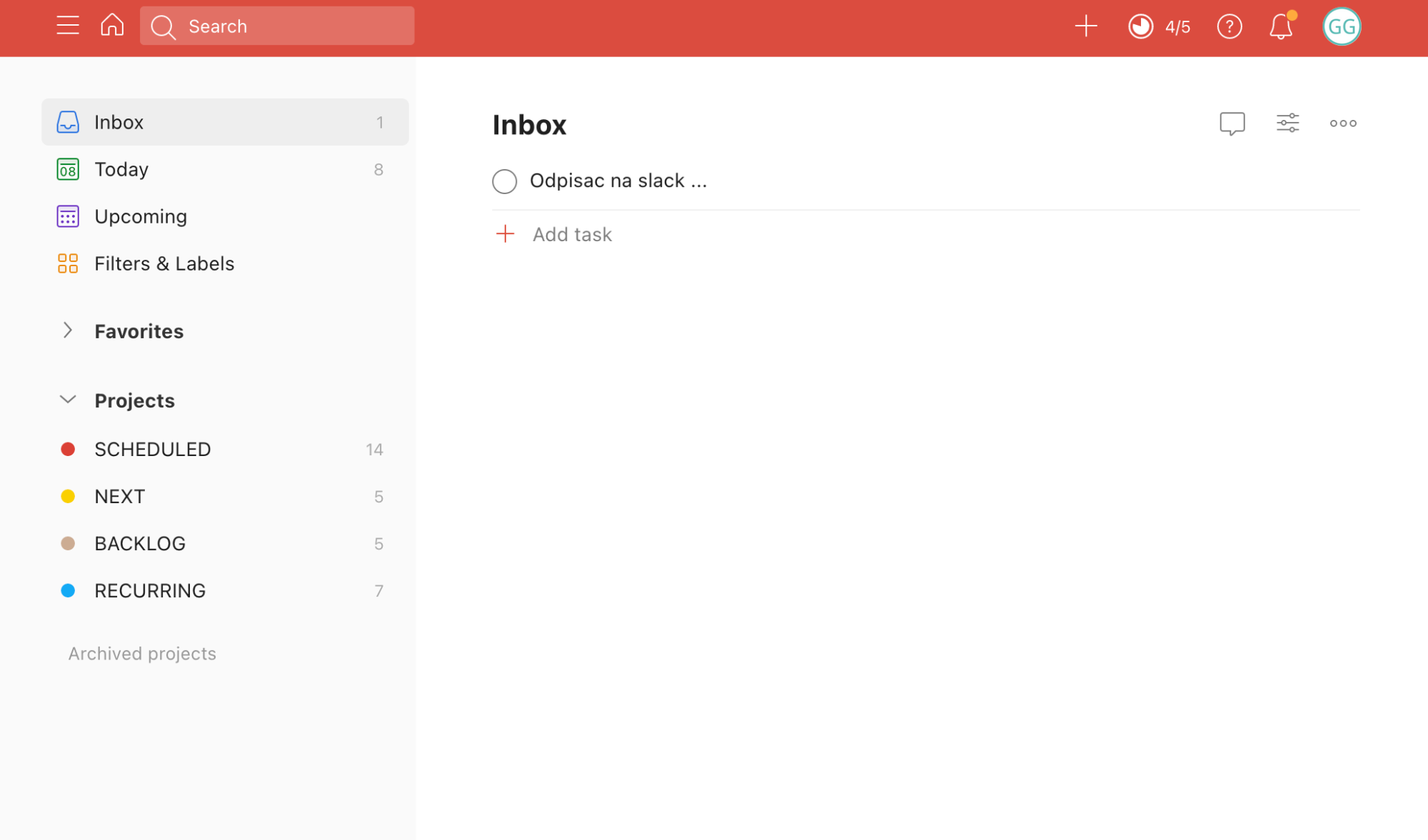
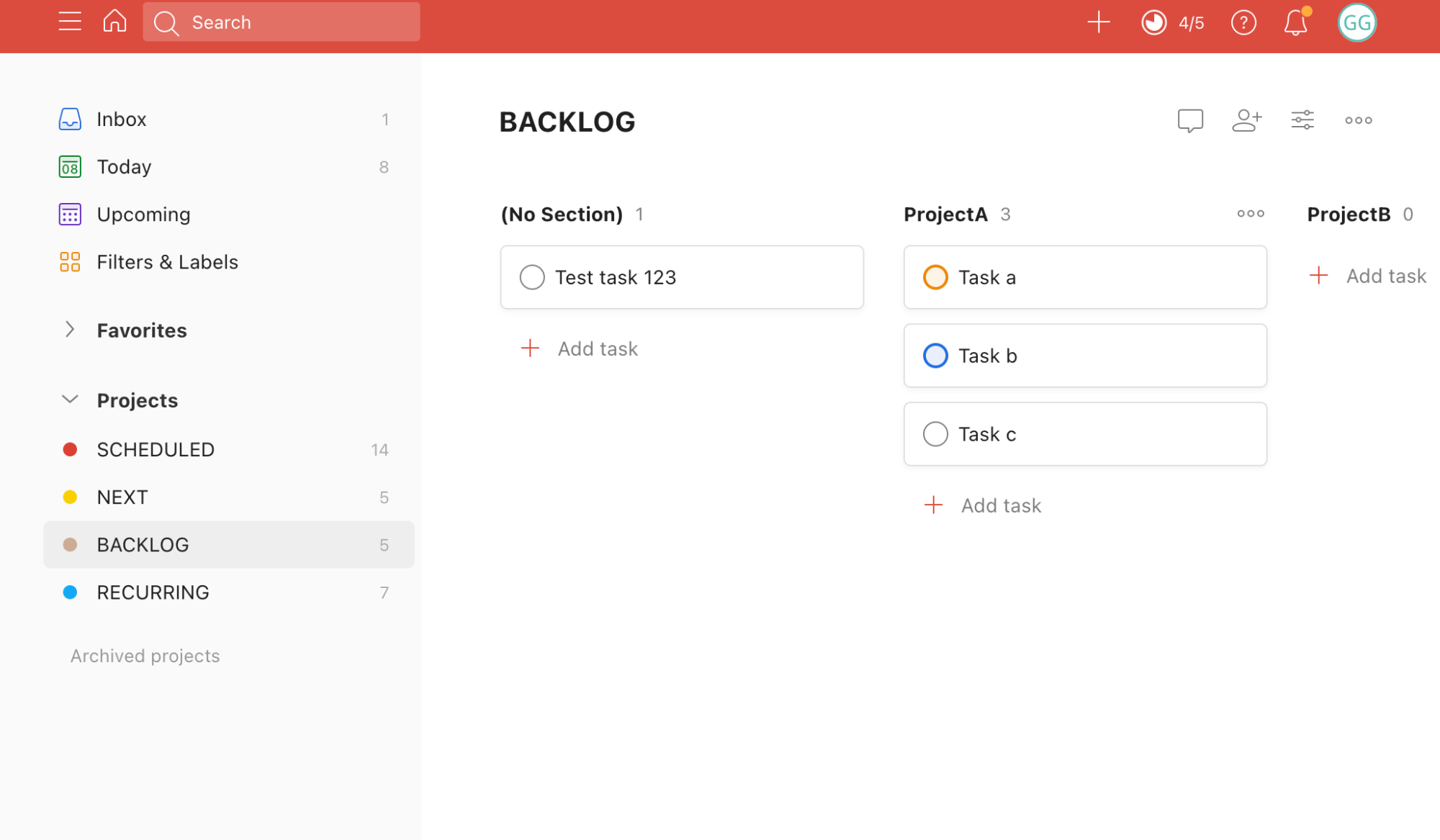
In Todoist I have 4 task lists (projects):
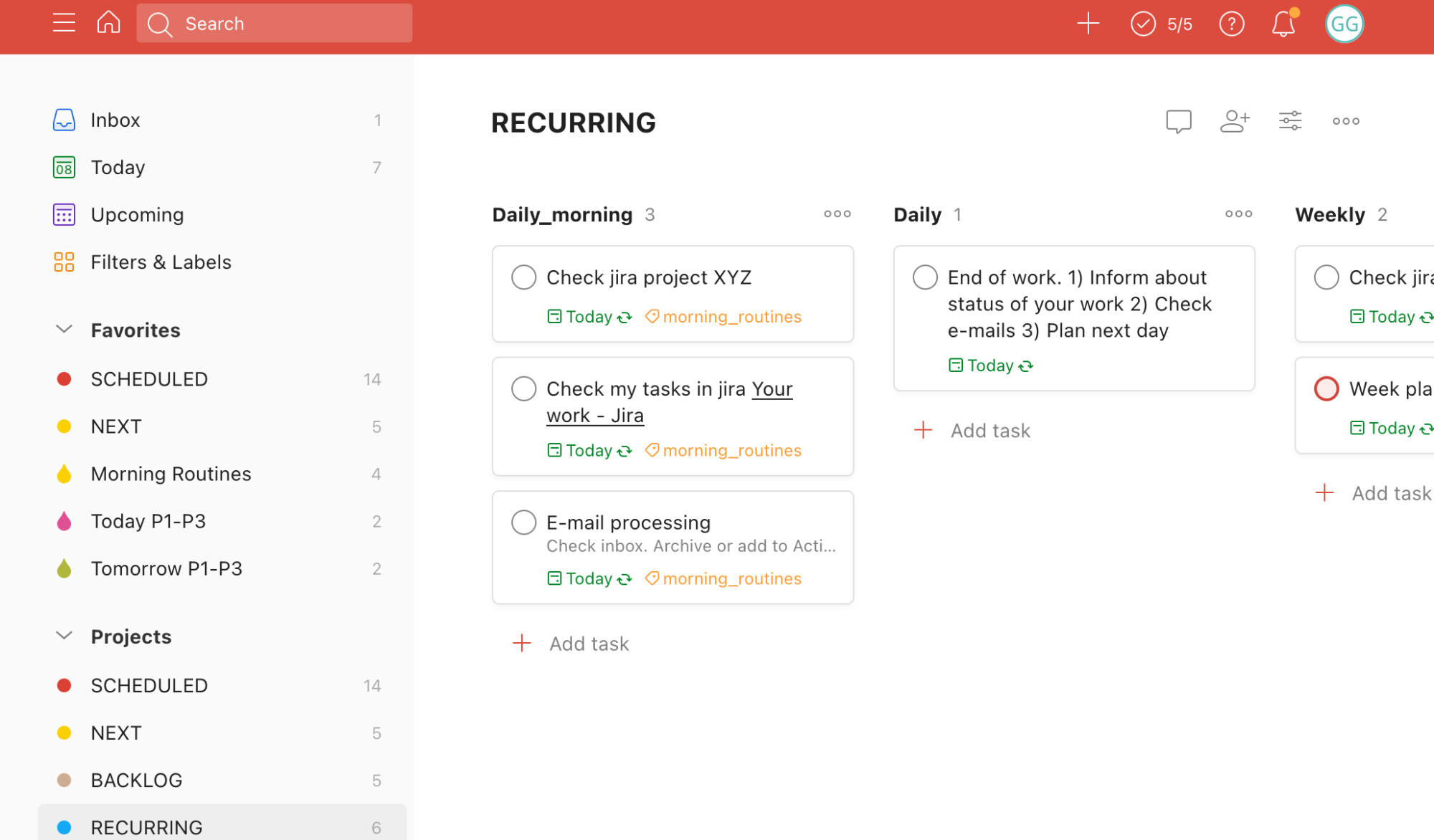
- RECURRING: repeating tasks (daily, weekly, monthly, etc.). Examples: a) on the first of each month, send the previous month’s documents to the accountant; b) on Friday, plan next week’s work; c) in the morning, check email.
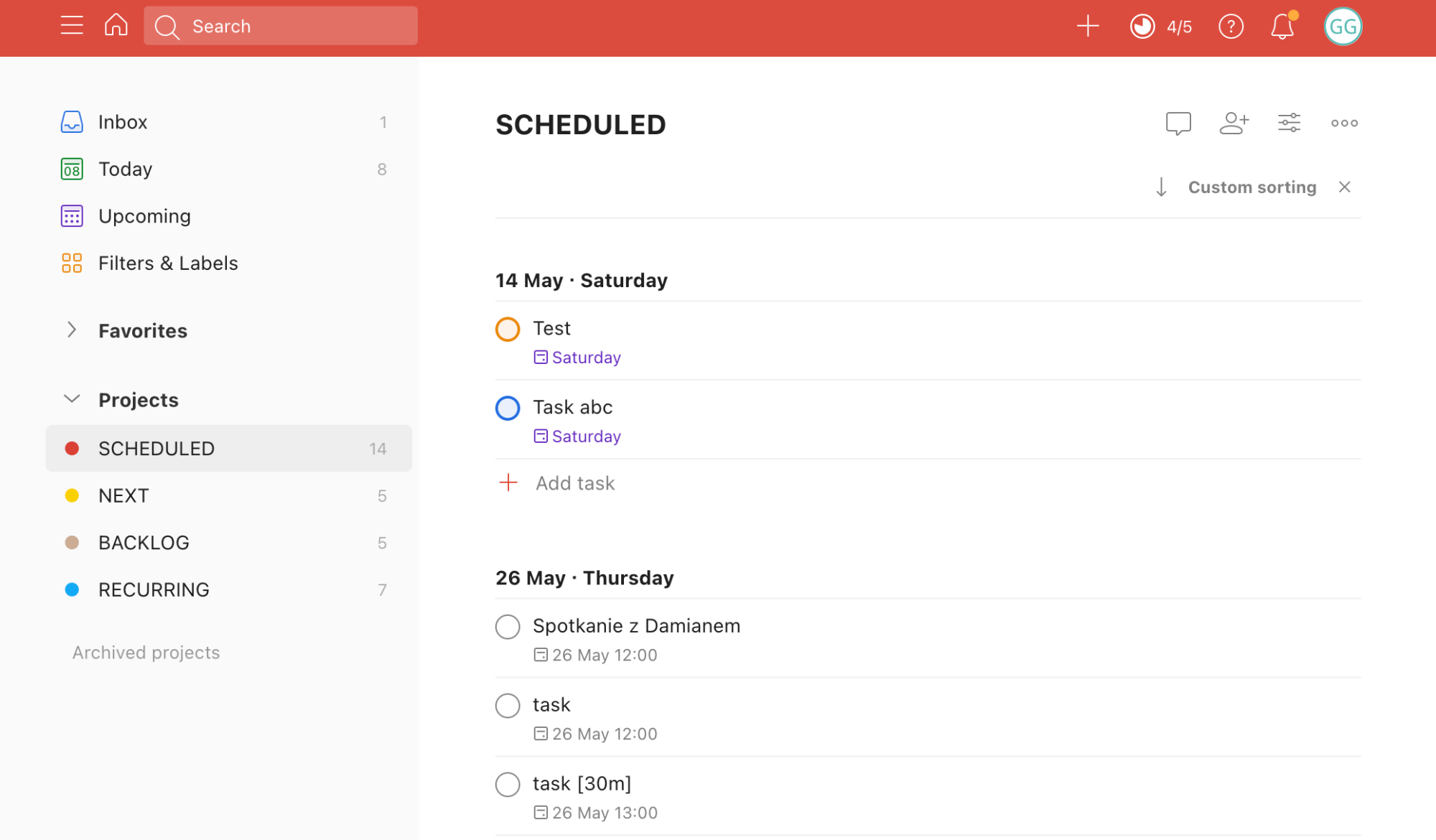
- SCHEDULED: individual tasks that must be done on a specific day. Examples: a) prepare for a meeting; b) order a courier; c) pay the phone bill; etc.
- BACKLOG: a place for tasks to do at some point. You’ll recognize the name from Agile/Scrum. This is where all tasks for a longer horizon than the next week go. You MUST check this list once a week and pick tasks for the upcoming week.
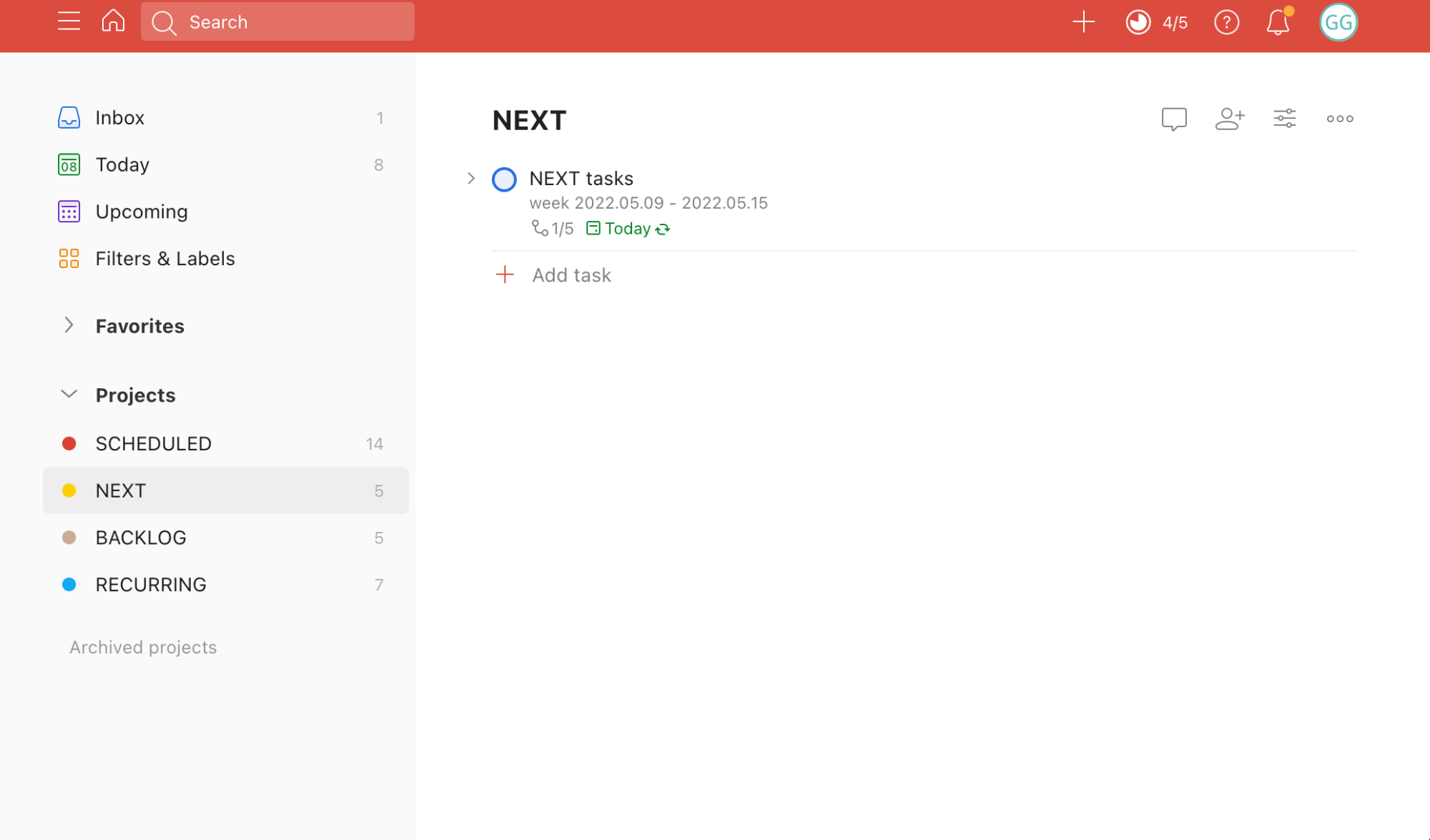
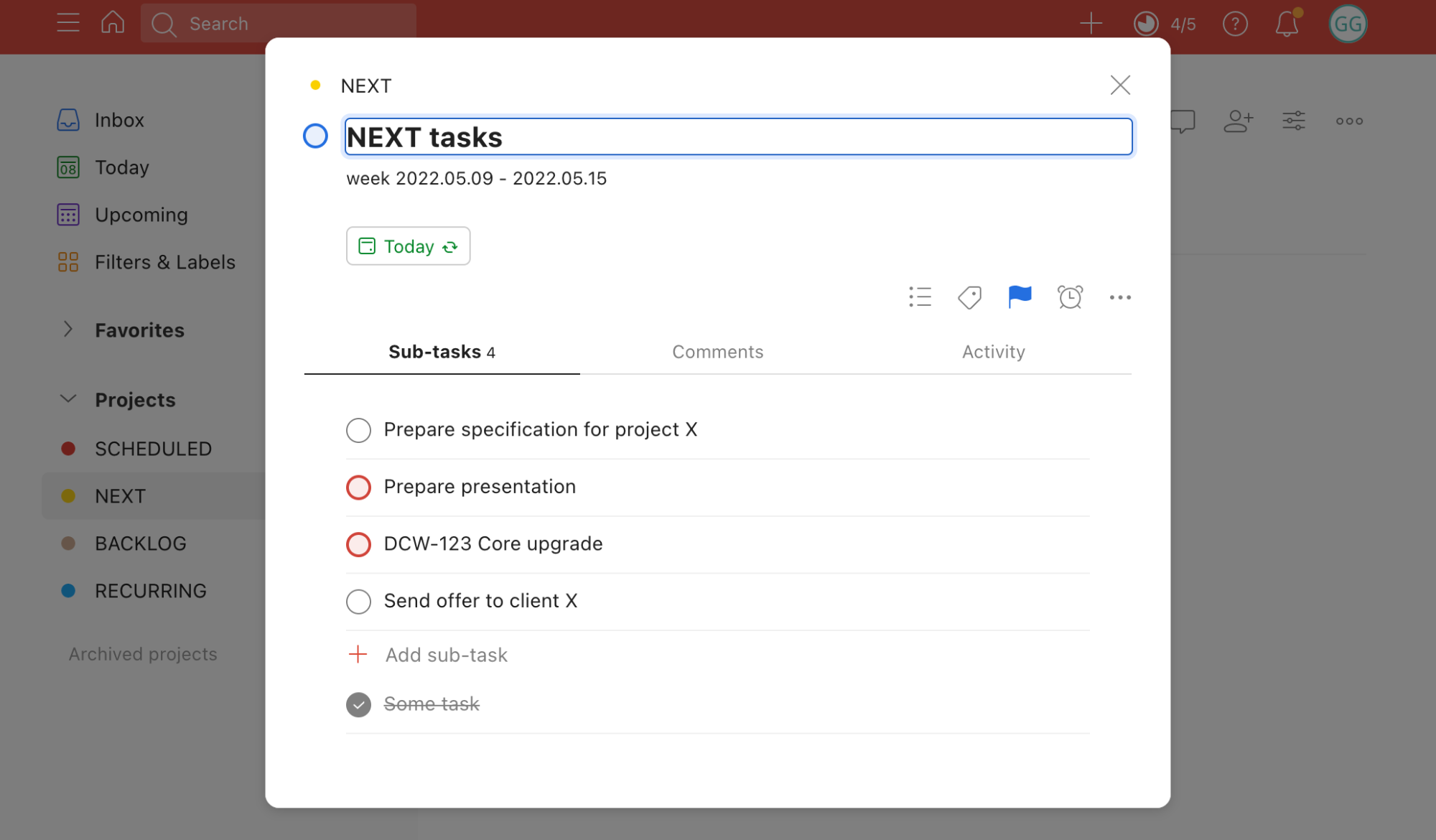
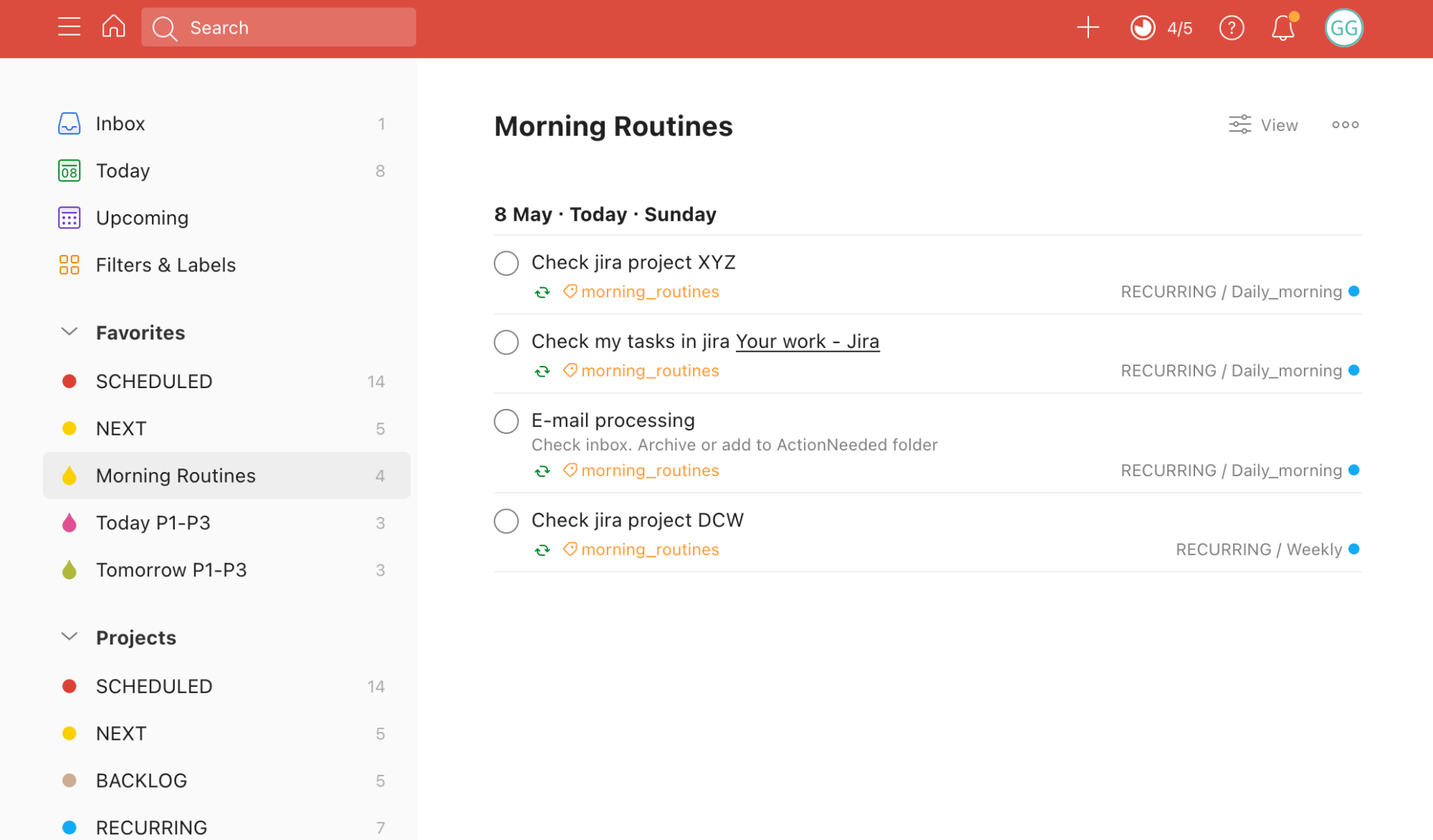
- NEXT: tasks I want to complete soon — for me, that means this week. I keep these as subtasks of a daily recurring task. As a result, in Todoist’s “Today” section I see a reminder about these tasks. You’ll understand this better by looking at the screenshots below.
If you’re familiar with the Eisenhower Matrix, you can map the above breakdown as follows:
- SCHEDULED: urgent important + urgent unimportant tasks.
- NEXT: not urgent but important tasks.
The best part of this workflow is that this list (project) structure can be used in the free version of Todoist.
Screenshots
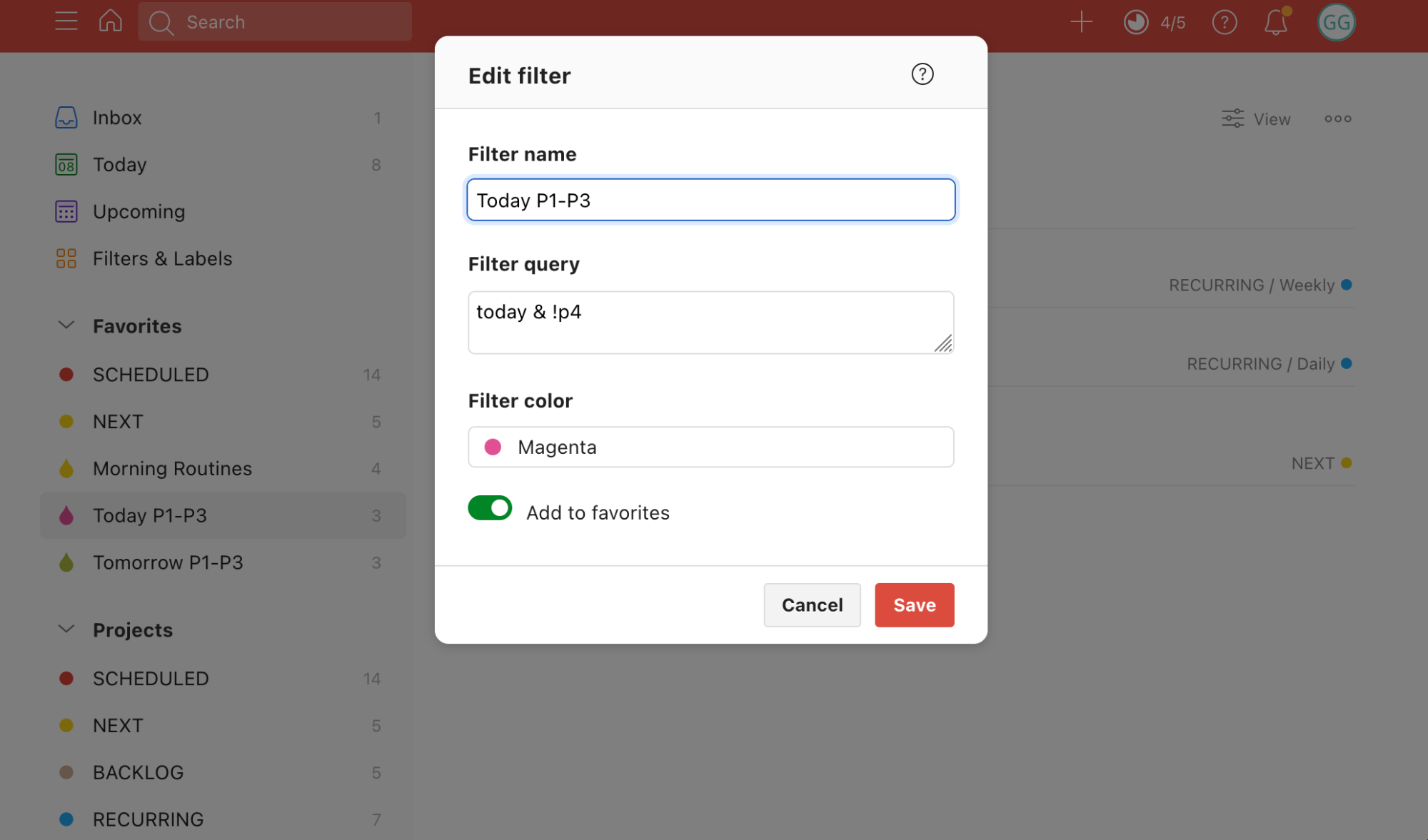
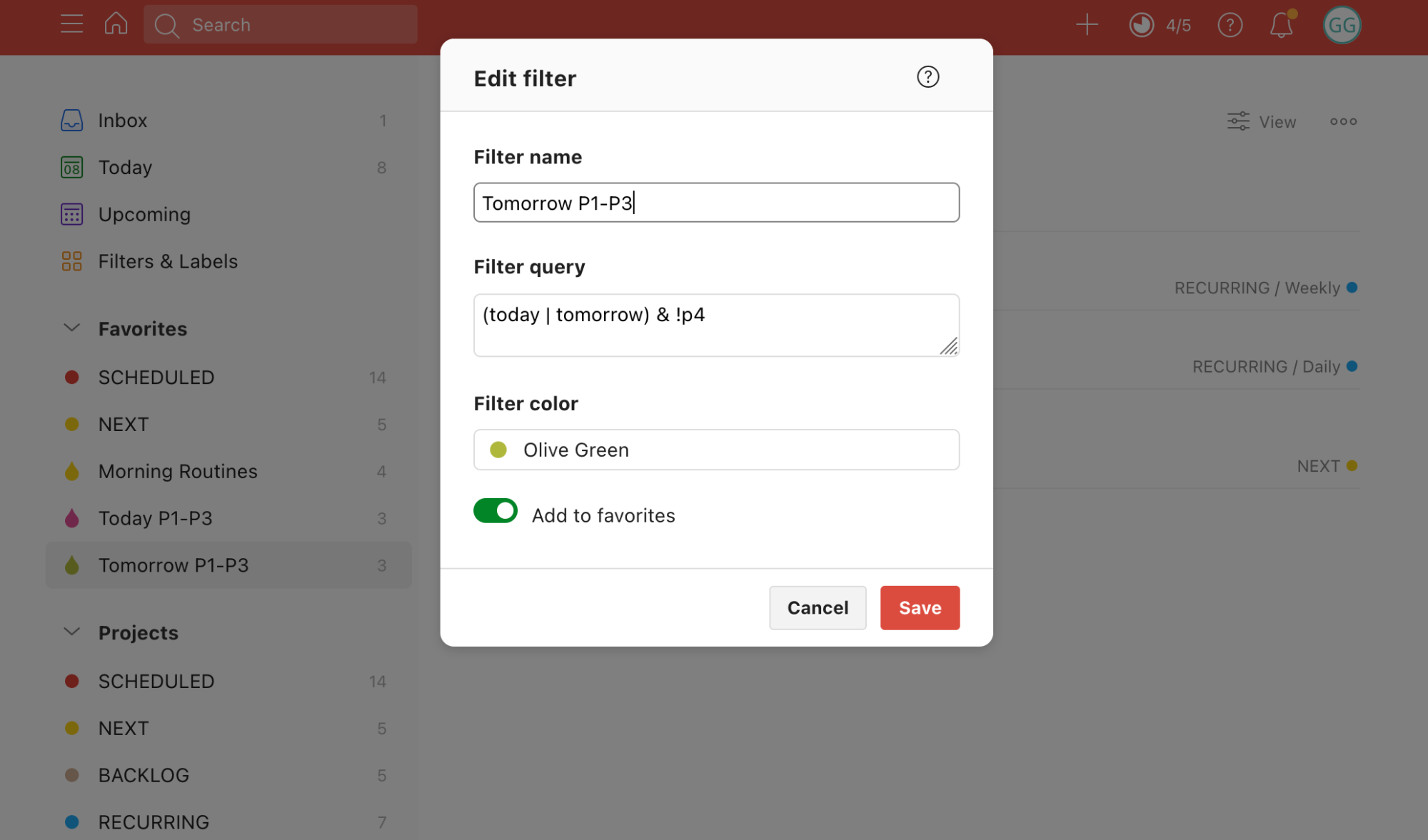
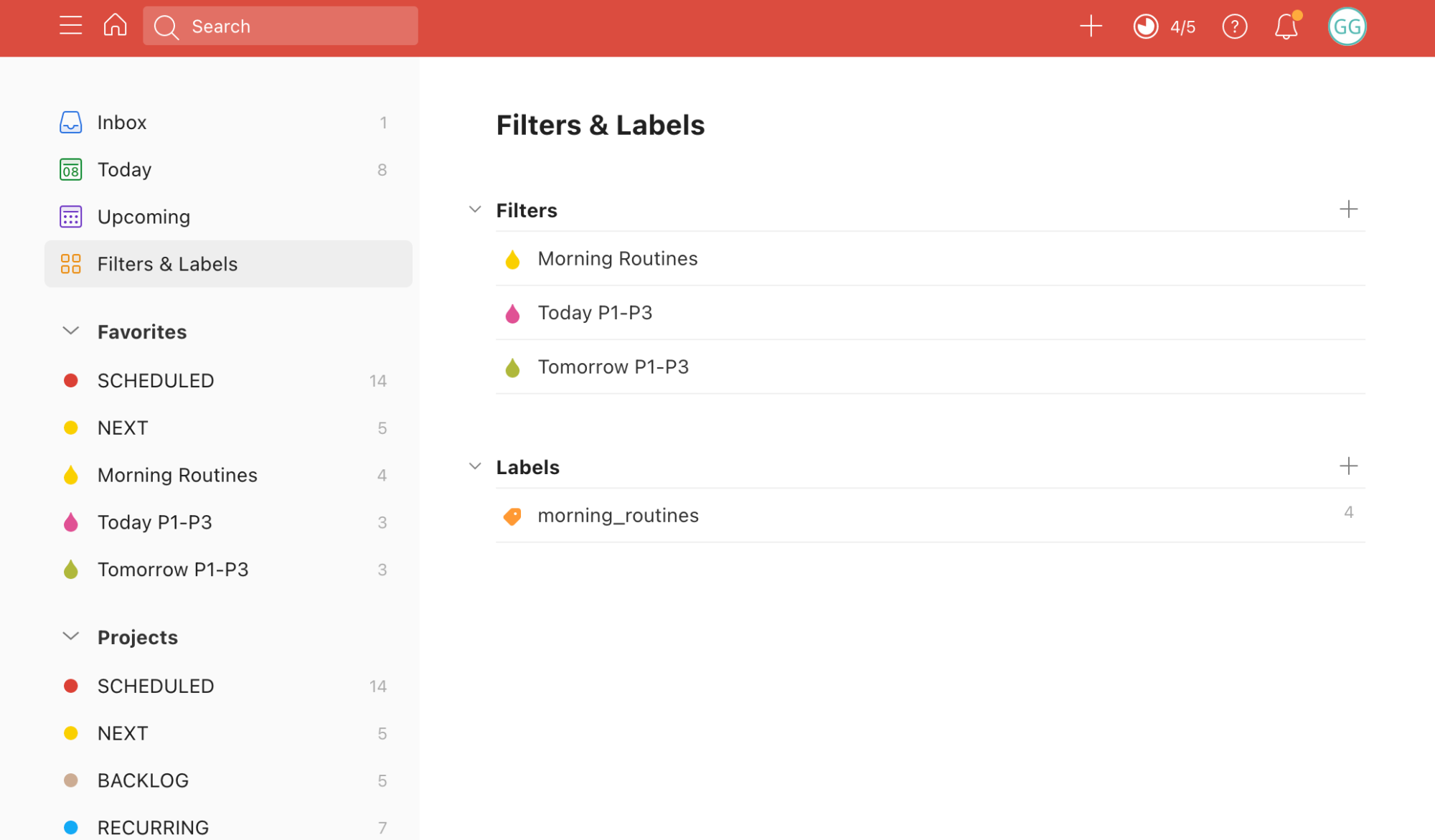
Other Todoist Settings
In addition to the workflow described above, I have these additional Todoist settings:
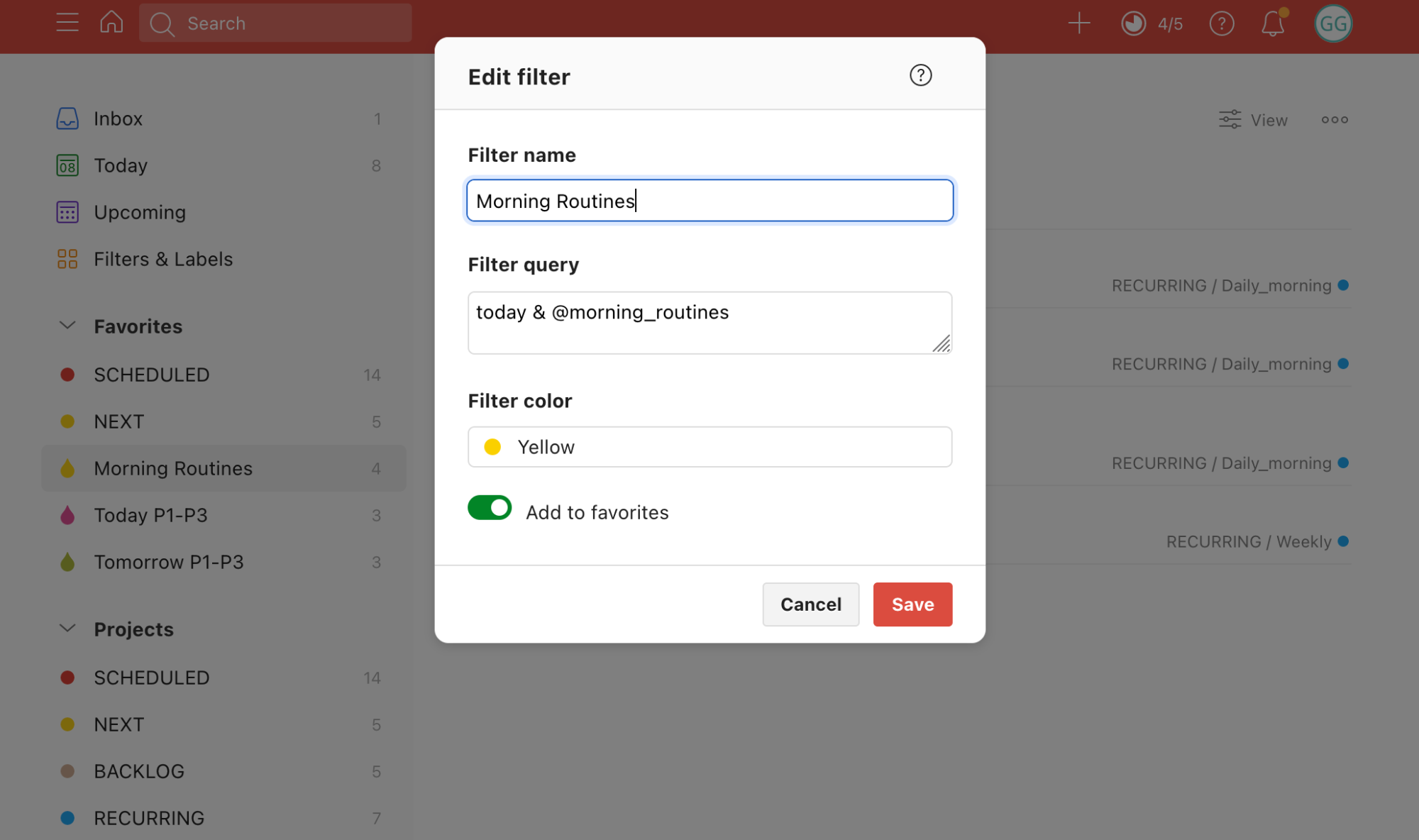
- I use the @morning_routines label for tasks I should do first thing in the morning (e.g. check email, Slack, Todoist inbox).
- Todoist is integrated with Google Calendar. Calendar events flow into the SCHEDULED project.
- Jira tasks assigned to me flow into Todoist’s inbox. I set up the integration via zapier.com.
- From Slack, I can add a link to any message as a task in Todoist.
- For managing email, I have two daily recurring tasks in Todoist: a) check email (then I either archive after reading, or move to “Action Needed”); b) reply to emails in the Action Needed folder.
Todoist is where I collect tasks from other systems. Everything is in one place, making it easier to plan my work, and I rarely forget to complete a task.